0
For architects

Smart Panel 8 - comprehensive and cost-saving

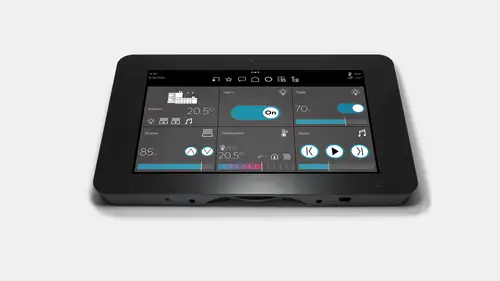
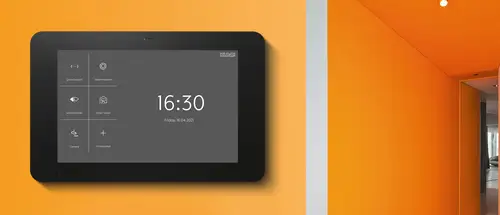
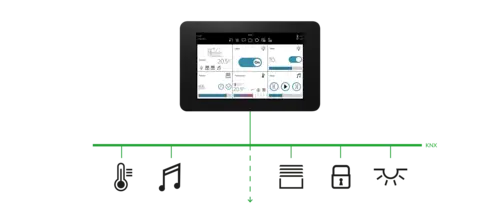
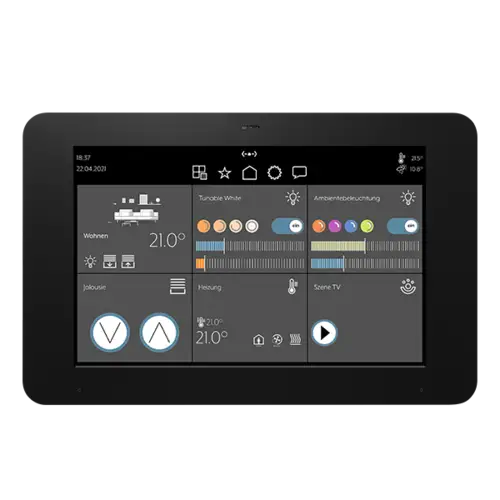
The Smart Panel 8 is a touch screen device to directly visualise your KNX system centrally on the wall or remotely with an app via your smartphone or tablet locally in your own WLAN. Without needing an additional server to be installed for this device, the Smart Panel 8 also acts as a cost-saving visualisation solution for your KNX system. Furthermore, it offers you comprehensive possibilities for intuitive control of your KNX system.

Smart Panel 8 at a glance:

  • Smart Vision graphical interface for operating KNX devices.
  • Complete and cost-efficient visualisation of KNX.
  • Local remote control using the JUNG Smart Vision app via smartphone or tablet.
  • Standalone solution that doesn't need a server.
Remote control using the Smart Vision app

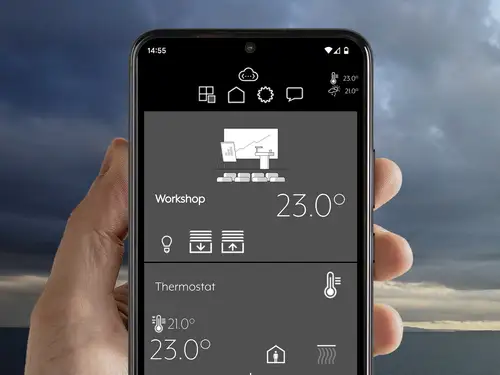
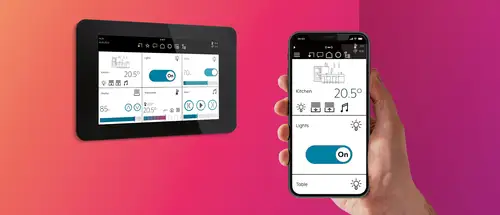
On the couch, from the kitchen, or in the garden: with the Smart Vision app on both smartphones and tablets, you can control the Smart Panel 8 using your local network.
Smart Vision app
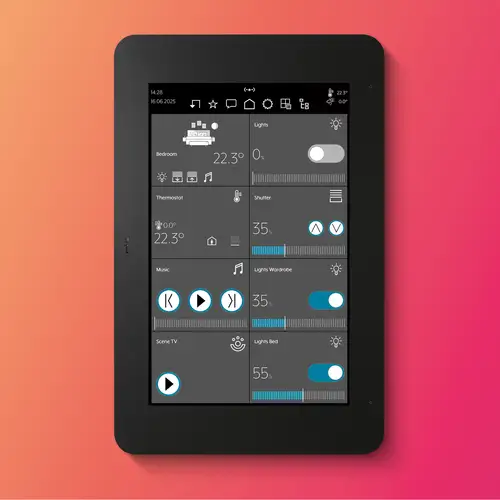
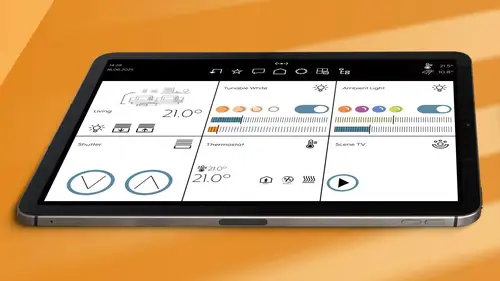
Relaying important information and allowing the control of various functions, the app is optimised for mobile device and supports a portrait viewport format. Up to ten app users can be stored for WLAN access to the Smart Panel 8 who can then control lighting, shade, heating, music and much more.
Smart Vision for iOS
Smart Vision for Android
Light or dark
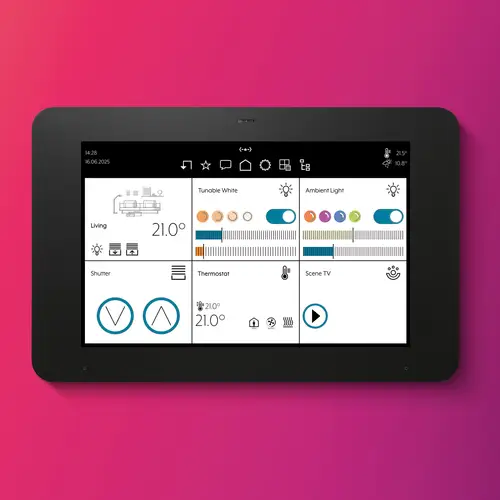
Smart Vision has both a light and a dark layout integrated, allowing you to alter the viewing mode according to your wants and fitting to your interior.
Vertical or horizontal
Wall mounting of the Smart Panel 8 is possible in both portrait and landscape formats. For the best display, orientation in landscape format is recommended.

Intuitive and smart

Main menu
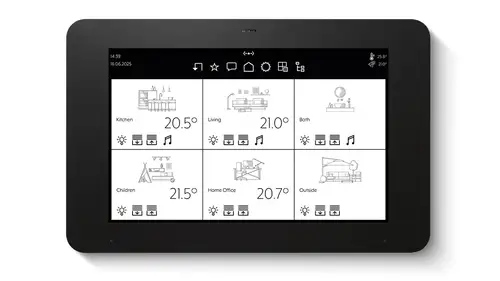
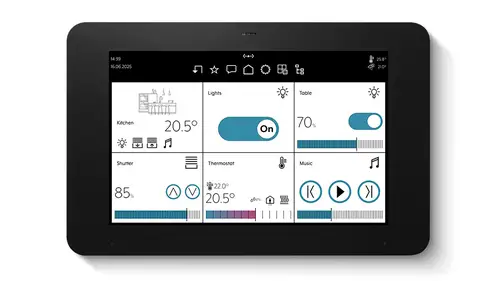
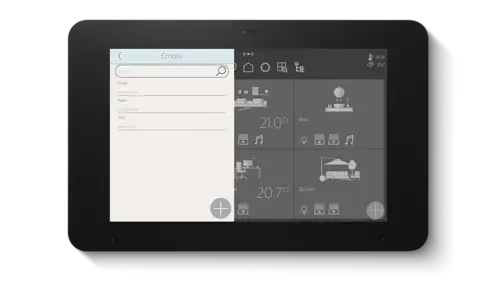
JUNG Smart Vision is the app interface to visualise your KNX system via the Smart Panel 8. The main menu screen displays up to six rooms in a grid. More rooms can be displayed by scrolling vertically, with horizontal scrolling showing the first or last room. Each room can also be viewed individually, seeing the elements and functions set up in this area.
Room view
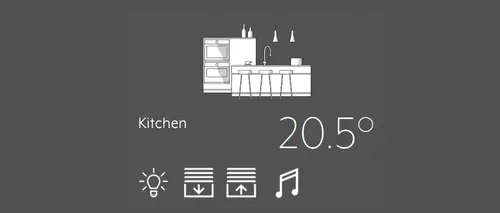
In the room view, you can see functions such as dimming of lights, switching of air conditioning, lowering of blinds and much more. The first tile shows the room itself together with its name and central functions. By clicking on an element, you can view its details to a greater degree.
Elements
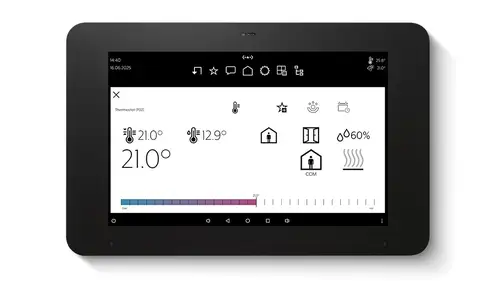
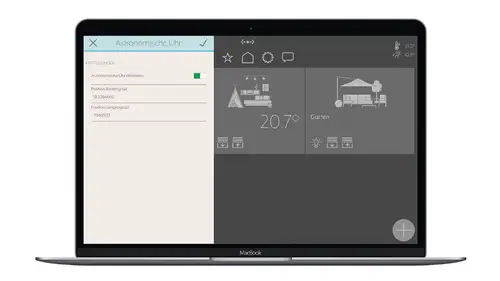
The view of an individual element is the most detailed level within the Smart Vision hierarchy. At this level, you can operate each function, read the status, configure schedules, integrate the astro function and much more. Up to a total of 300 elements or rooms can be set up for each Smart Panel 8.

Sensors and functions

Clear display in the Smart Vision app shows rooms and elements in the form of large tiles.
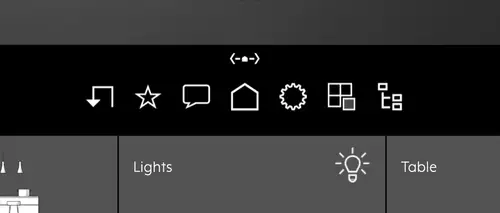
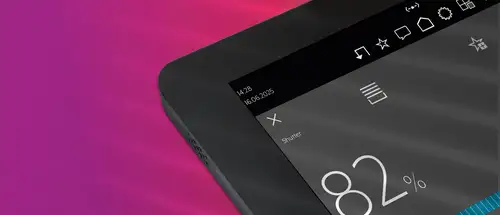
In the navigation bar, you have quick access to the room view, settings, favourites or the last events registered.
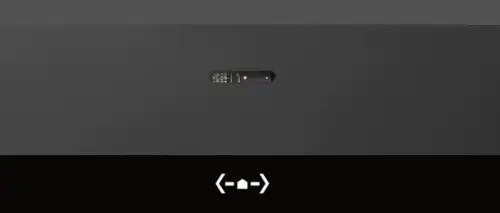
A proximity sensor and a brightness sensor detect if you are standing in front of the panel and adjust the display brightness according to the ambient light.
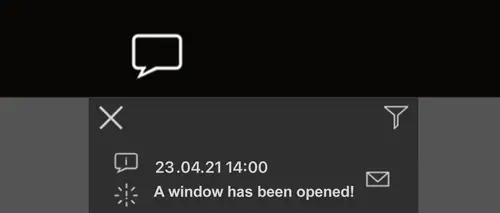
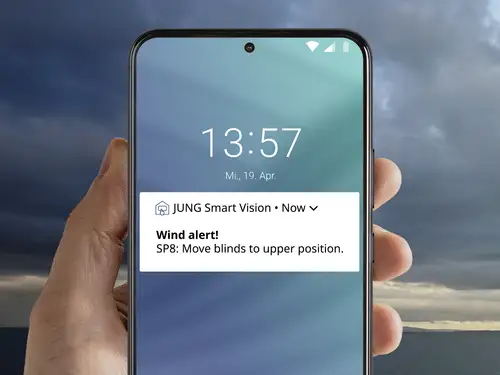
Important events are displayed as pop-up messages. If needed, an acoustic signal can also sound. Pop-up messages are displayed on the panel or a smartphone.
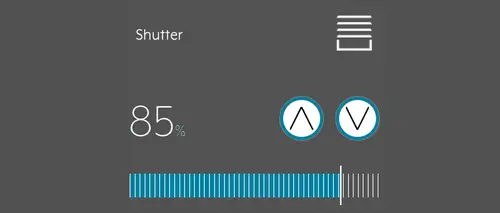
The functions are stored as elements (icons). You can control them directly here.
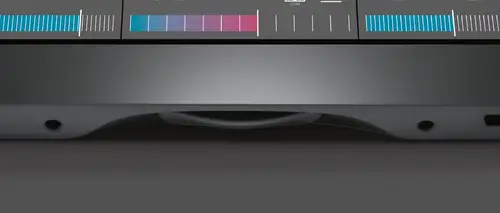
The physical button switches the Smart Panel 8 on and off. Additionally, a short press opens the Launcher.
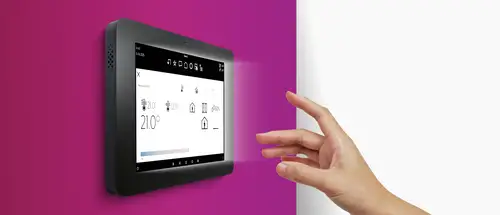
Automatic proximity detection

The proximity sensor helps you save energy, while also ensuring that all functions remain immediately available when needed as it activates the display whenever you stand in front of the Smart Panel 8.

Up-to-date through updates

Smart Panel 8 is continuously being further developed in order to optimally support the constantly growing requirements for building technology functions. Information on the latest adjustments and optimisations can be found in the changelog.
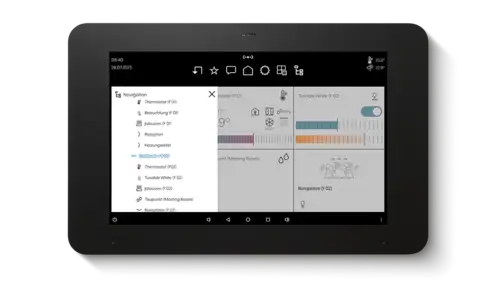
UX optimisation: faster navigation
Two new icons have been added to the navigation bar. This makes navigation clearer and more convenient, especially in large systems. Users can switch between functions and areas (rooms) even more efficiently by switching pages. The building and function structure can be called up directly via the tree view.
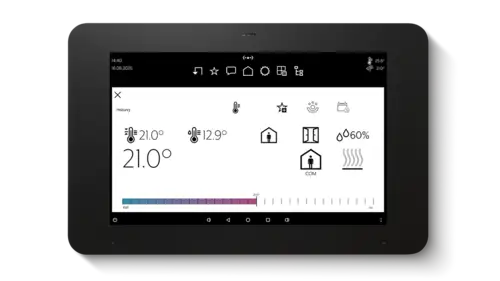
Extended dew point function
The internally calculated dew point can now be sent directly to the KNX bus, either cyclically, when the value changes or as a combination of both. This allows, for example, ventilation controls or alarms to be triggered automatically if there is a risk of condensation - for greater safety and efficiency in the HVAC sector. In addition, external dew point temperatures from other KNX sensors can now also be used to trigger processes.
Door communication
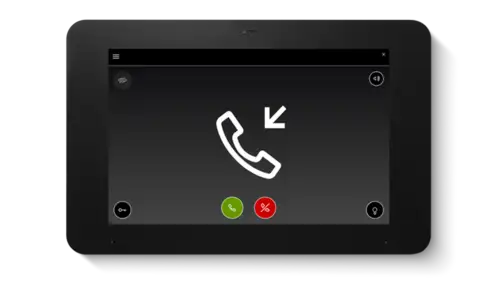
In combination with the Smart Gateway 650-/SG 150 from Siedle, the Smart Panel 8 can also be connected to the door communication in the local IP network, providing added convenience. Users can access the Siedle app for door communication using the JUNG Launcher.
Tunable White
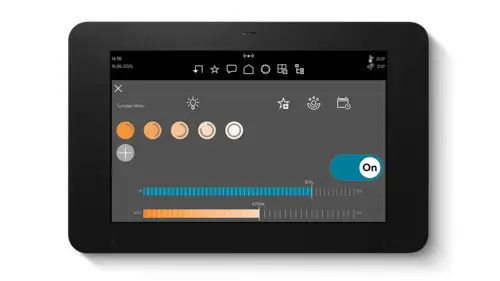
Operation of Tunable White (TW) via KNX: with Tunable White, the light's colour temperature can be continuously regulated from warm white to cold white, matching with the human biorhythm. The lighting thereby improves performance and wellbeing.
Coloured light control
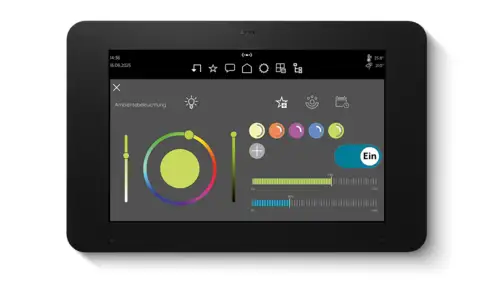
Intuitive coloured light control with the colour picker: the operating element in the form of a colour wheel enables the fast selection of light colour and light intensity.
Messages
Important events are displayed as pop-up messages. If needed, an acoustic signal can also sound. Pop-up messages are shown on the panel or smartphone. In addition, messages can be sent to a saved e-mail address. Users can thus be informed about events even when they are not on site.
Automated time-sensitive functions
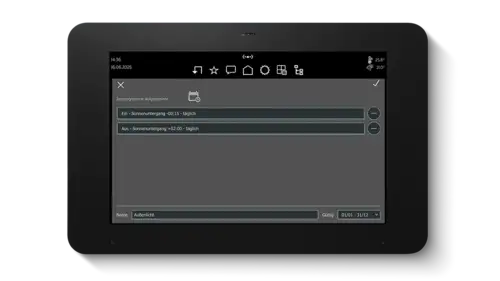
Schedules for certain actions, such as switching on lights or lowering shutters, can be set to run at specific times. For example, every morning at 8 am, the shutters are raised and in the evening at 7:30 pm the exterior lighting turns on. You can set schedules in the detail views of an element. Up to 125 elements with a maximum of ten commands each can be stored in the Smart Panel 8.
Combined in sequences
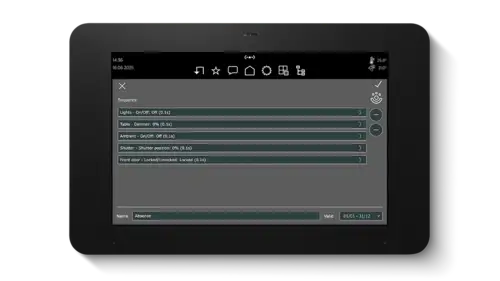
With the Smart Panel 8's capacity, series of functions can be linked and set to a single button. After pressing a single button, the light turns on while the blinds are lowered, and your individual playlist runs. You can create scenes for each room. In addition, you can also schedule them to run fully automatically with pre-sets.
Remote access
With remote access, users can individually control their heating, lighting and shading using KNX at any time, even on the move. Access is secure via the cloud.
Push notifications
Alongside e-mail notifications, push notifications can now also be sent to a smartphone or tablet.
The heart of the Smart Panel 8 is the Launcher. From here, you are able to access other apps such as QuickSupport, Screencleaner or JUNG Camera. In addition, updates are installed here and settings can be accessed via the logo at the top right. To activate the Launcher, short press the HOME button at the bottom of the Smart Panel 8.

Application areas

For smart homes
Living room
Kitchen
Dining room
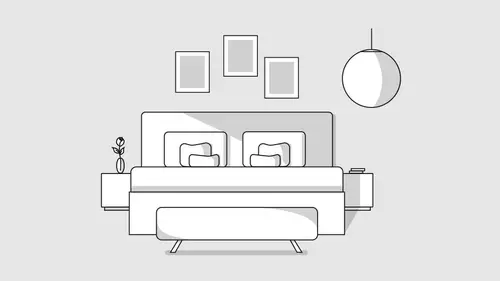
Bedroom
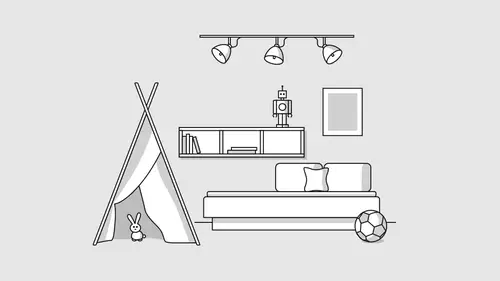
Children's room
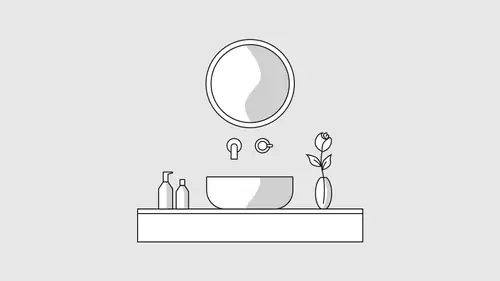
Bathroom
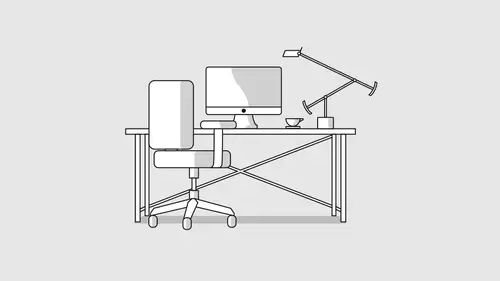
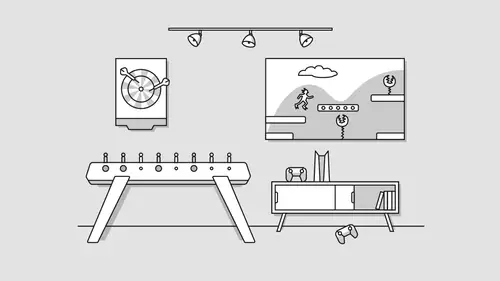
Home office
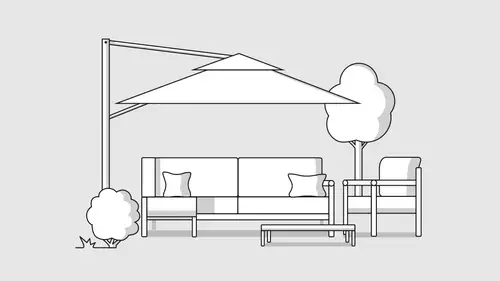
Garden
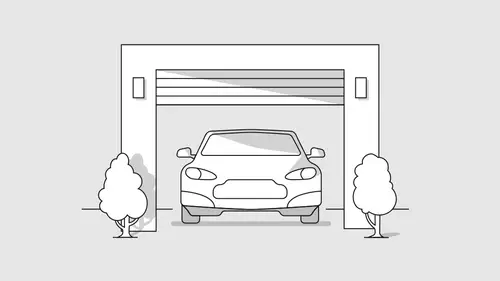
Garage
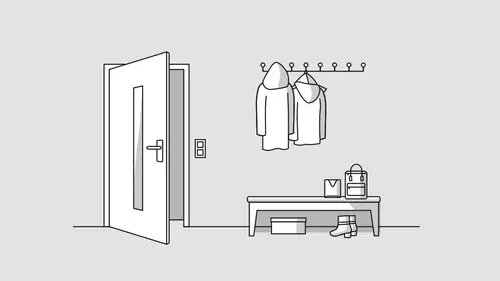
Cloakroom
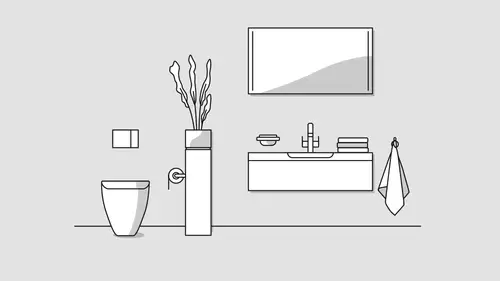
Bathroom
Hobby room
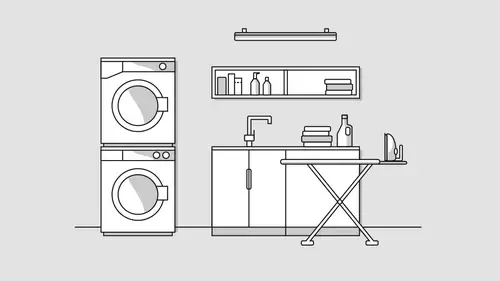
Laundry room
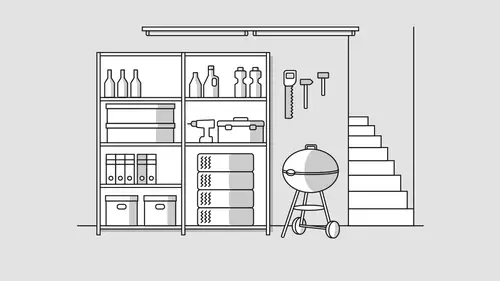
Cellar
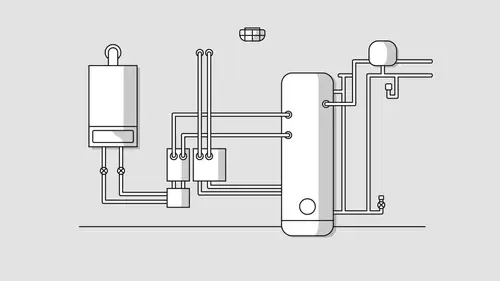
Heating room
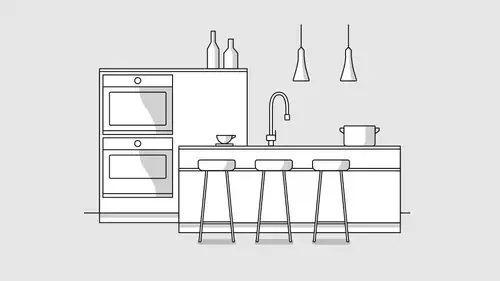
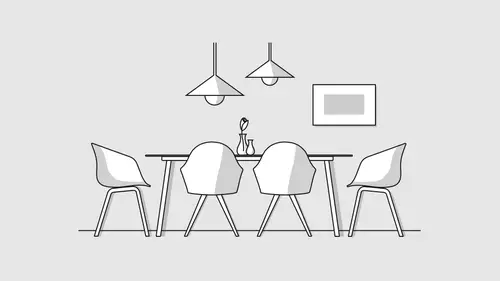
Thanks to the simple operation and clear visualisation, the Smart Panel 8 is ideally suited for the smart home. You are able to easily set up and control functions in a wide range of rooms in your house. Scenes, which happens when a number of functions are activated at the same time with just the press of a button, can be set as well. In addition, the Smart Panel 8 helps to save energy by only running the air conditioning when someone is at home.

Smart Panel 8 in the smart home:

  • Live more conveniently with intelligent KNX technology
  • Save energy with automation where needed
  • Presence simulation when nobody is home
For smart buildings
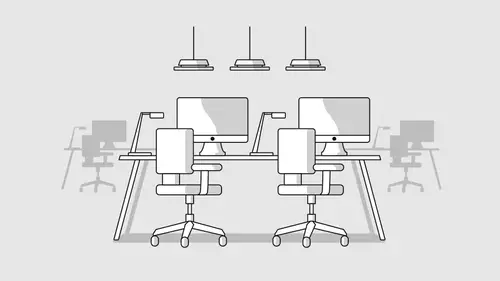
Office
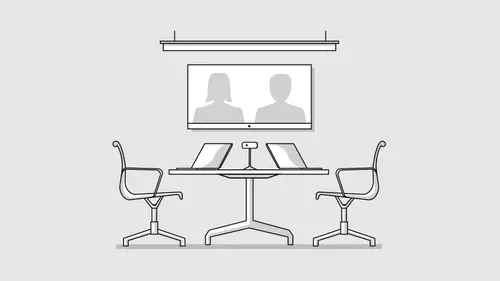
Meeting room
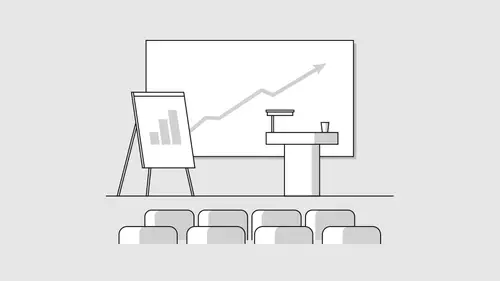
Lecture room
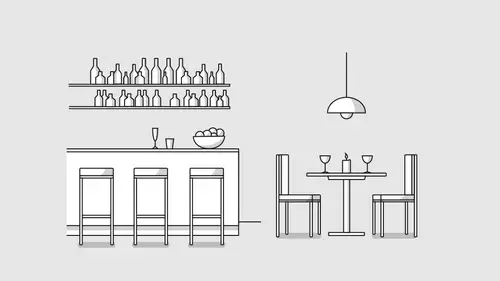
Restaurant
Hotel reception
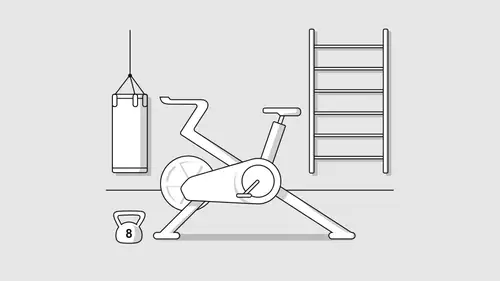
Sport
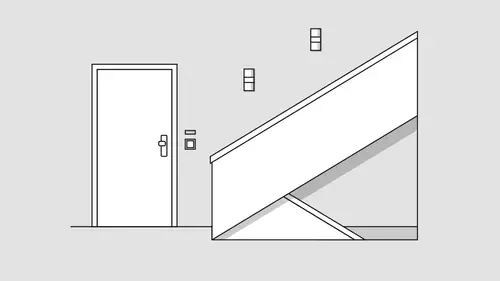
Stairwell
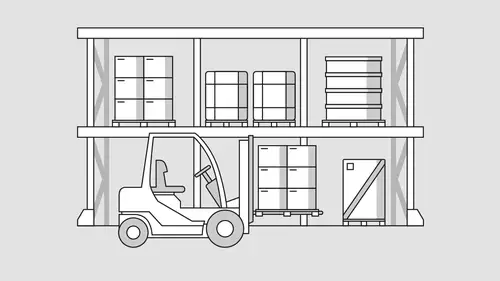
Warehouse
The Smart Panel 8 is also suitable for commercial spaces. The automated air conditioning in the meeting room, the perfect lighting mood at the bar, the ideal combination of light and shade in the office: with appropriately set up elements, logic and schedules, the Smart Panel 8 also makes control of elements in the workspace convenient. The individual room view can be switched off in the JUNG Smart Vision user interface.
Smart Panel 8 in the smart building:

  • Needs-based shading with a schedule and astro function
  • Controlling the dimming, temperature and RGBW colour of lights
  • Ambient temperature adaptation with automatic climate control

Smart Panel 8 in detail

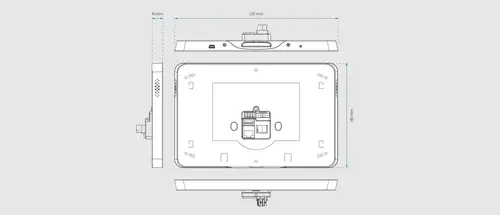
All of the Smart Panel 8's important connection ports can be found at the back of the device, while the HOME button can be found at the bottom edge of the touch display surface. The Smart Panel 8 can be installed in many existing boxes, allowing for easy retrofitting.
The design of the Smart Panel 8 is founded on the principle of simple modernisation. The touch panel is ideally suited for retrofitting, fitting onto the familiar flush EBG 24 installation housing of the now discontinued SC 7 EBG. Installation onto the standard device housing in accordance with EN 60670-1 is also possible. The recommended box depth is around 60 millimetres.
Installation and fitting
Appliance box in accordance with EN 60670-1
Deep standard boxes are ideal for installing the KNX Smart Panel 8. Recommended depth of the box is approx. 60 mm.
Retrofitting
The EBG 24 installation box of the JUNG Smart Panel 5.1 as well as older devices and products with the same shape is suitable for retrofitting with the Smart Panel 8.
Flexible
Thanks to the adapter supplied, flush ­installation housings from the Smart Control range SC 7 EBG can also be used.
If you use a Facility Colour Touch Panel IP, Smart Panel 5.1 or the LCD signal panel, upgrading is simple as the Smart Panel 8 fits into the existing flush-mounting box and covers it seamlessly.
KNX Smart Panel 5.1
Ref.-no. SP 5.1 KNX
Facility Colour Touch Panel
Ref. no. FP 701 CT
LCD signal panel
Ref. no. MT 701

Commissioning with ETS

Project design
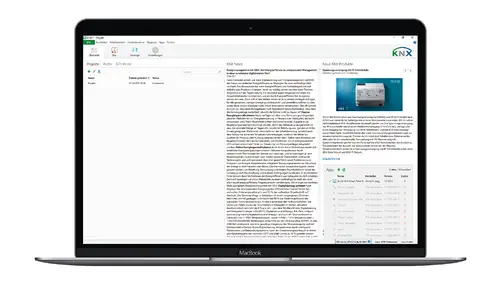
Installers plan Smart Vision with the KNX SMART PANEL DESIGNER Windows software. This can be done jointly with the owner as they can see directly what they will be able to operate on the Smart Panel 8. At the end there is a project file. 
Integration
The installer imports the project file to the ETS quickly and easily with a device configuration app (DCA). The required KNX communication objects then appear there and are then linked to the group addresses of the installation as usual.
In-app system update
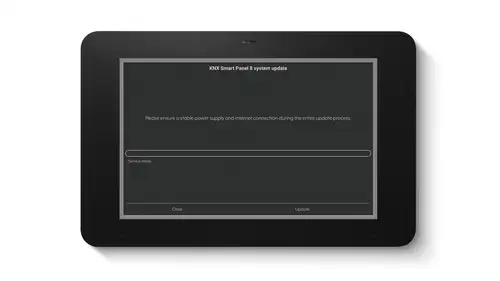
The KNX touch display can be updated conveniently using the associated JUNG Smart Vision app. This provides significantly more convenience and flexibility.
Programming
The programming of the Smart Panel 8 comes at the end. The installer programs visualisation, communication objects and group addresses of KNX actuators, sensors and push-buttons into the device with the help of the ETS.

Discover the Live Services from JUNG

JUNG GRAPHIC TOOL
Create individually switches, sockets, KNX buttons, room controllers and more according to your ideas. The operating elements can be customised online with symbols, text or logos.
JUNG Showrooms
Experience our products and building technology in our showrooms near you.

JUNG Newsletter

Product news, architecture references and smart home trends: With our JUNG newsletters you are always well informed when it comes to trends and news.

Contacts

Do you have any questions, requests, or suggestions about our products and solutions? Please contact us. We hope we can help you!